Can Canva Be Used for UI/UX Design? A Practical Guide
Can Canva be used for UI/UX design? Learn when Canva works for wireframes, app mockups, website layouts, and when Figma is better for professional UX.
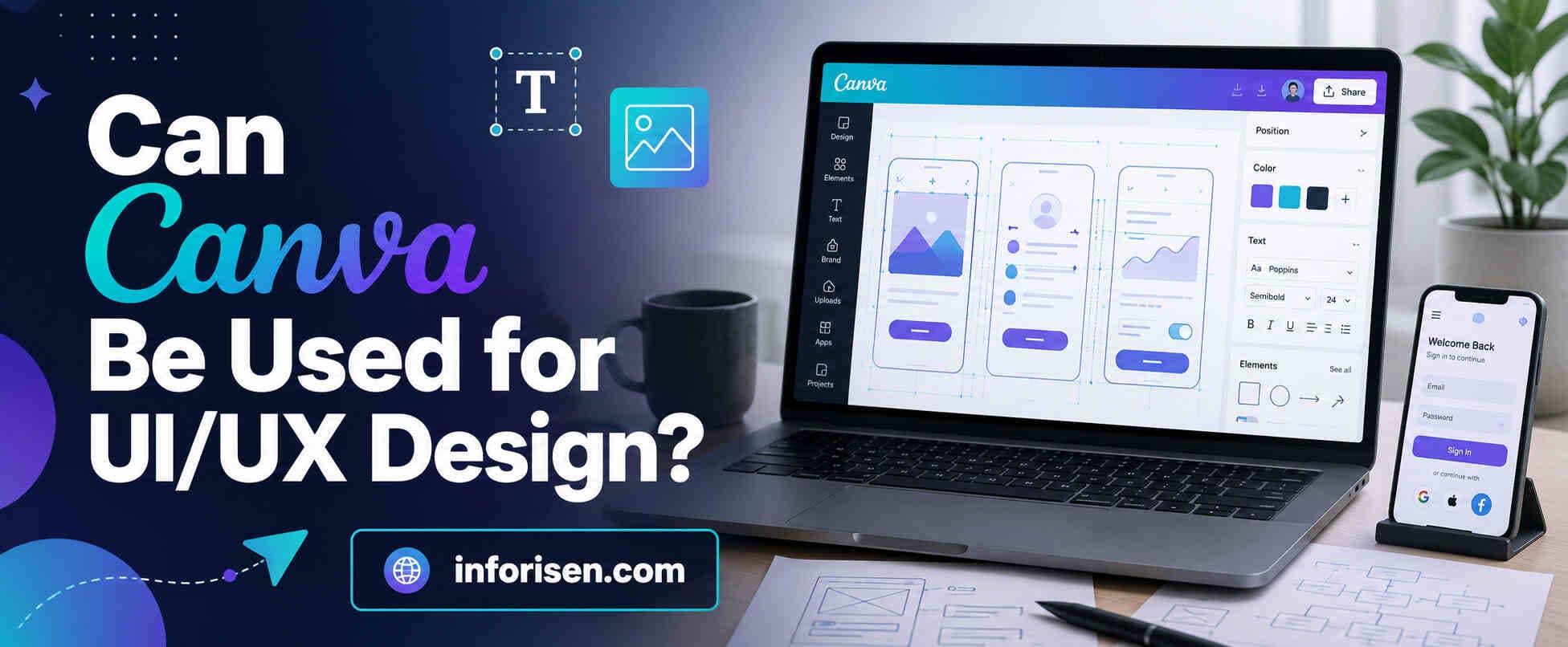
Can Canva be used for UI/UX design for simple wireframes, mockups, app screen ideas, website layout planning, and early visual concepts. It is helpful for beginners, marketers, business owners, and non-design teams who want to present ideas quickly without learning a complex design tool.
But Canva is not a full replacement for professional UI/UX tools like Figma or Adobe XD. It works best for basic design planning, low-fidelity layouts, visual mockups, and presentation-ready concepts.
For advanced UX research, design systems, interactive prototypes, developer handoff, and scalable product design, a dedicated UI/UX tool is still better.
What Does UI/UX Design Really Need From a Tool?
Before choosing Canva, Figma, Adobe XD, or any other design platform, it is important to understand what UI/UX design actually includes. UI is about how a digital product looks. UX is about how easy, useful, and smooth the experience feels for real users.
A proper UI/UX process usually includes user research, information architecture, wireframes, user flows, prototypes, visual design, usability testing, and developer handoff. This is why the work of a designer is much deeper than only creating attractive screens. The role is explained well in what does a UI UX designer do, because modern UI/UX design connects business goals with real user behavior.
A design tool should support this process. Some tools are better for fast visuals. Some are better for product design. Some are easier for beginners but limited for advanced work. That is where Canva needs a balanced review.
Can You Design UI in Canva?
Yes, you can design UI in Canva, especially if you want to create simple website sections, landing page mockups, mobile app screens, dashboard concepts, or social-style interface visuals.
Canva has UI mockup features and templates that help users create interface-style designs without starting from a blank canvas. Canva also offers online wireframing and UI mockup tools for building app or website concepts.
This makes Canva useful for early-stage design. A startup founder can sketch an app idea. A marketer can prepare a landing page concept. A small business owner can show a website layout to a developer. A beginner can practice interface design without feeling overwhelmed.
However, designing UI in Canva is not the same as building a professional product design system. Canva can help you show what a screen may look like, but it does not give the same level of control that a dedicated UI design tool gives.
What You Can Create in Canva?

Canva can support many basic UI design tasks when the project is not too technical. It is especially useful when the goal is speed, presentation, and visual clarity.
| Canva UI/UX Task | Can Canva Handle It? | Best Use Case |
|---|---|---|
| Website wireframes | Yes | Early page layout planning |
| App UI mockups | Yes | Basic mobile screen concepts |
| Landing page design | Yes | Marketing page ideas |
| Dashboard concepts | Partly | Simple visual planning |
| Clickable prototypes | Limited | Basic presentation flow |
| Design systems | No | Better in Figma |
| Developer handoff | Limited | Not ideal for production |
| Usability testing flows | Limited | Better in UX-focused tools |
Canva works well when the design needs to look clean and understandable quickly. But when the project needs advanced interaction, responsive behavior, reusable components, and technical accuracy, other tools become more suitable.
Is Canva Good for UX Design?
Canva is good for beginner-level UX design planning, but it is not enough for full UX design work. UX is not only about arranging buttons, cards, images, and text. It is about understanding user needs, reducing friction, testing flows, and improving how people complete tasks.
For example, a business may want users to book a call, buy a product, fill out a form, or request a quote. UX design studies the journey from landing on the page to completing that action. Canva can help visualize that journey, but it does not fully support research, testing, analytics, or product-level interaction design.
This is also where UX connects with search performance. A clean design can make content easier to read, but strong UX also improves navigation, trust, speed, and conversion flow. The connection between design and organic performance is explained in how UI UX design affects SEO and website ranking, because a website should satisfy users after they arrive from search.
So, Canva is good for starting UX ideas. It is not the best tool for completing serious UX projects.
Canva Wireframe Templates: Are They Useful?
Canva wireframe templates are useful for beginners who want to plan a website or app screen without learning professional software first. Canva provides wireframing options that let users build app and website wireframes with templates and collaborative whiteboard-style tools.
This is helpful because wireframes do not need to be beautiful at the beginning. Their purpose is to show structure. A wireframe helps teams decide where the header, content, images, forms, buttons, and sections should go.
Canva wireframes are useful for:
- Blog page structure planning
- Landing page layout ideas
- Service page section mapping
- App screen rough concepts
- Client presentation drafts
- Marketing campaign page planning
Still, Canva wireframes can become limiting when a project grows. Professional UX teams often need clickable flows, reusable components, variants, grid control, design tokens, comments, testing notes, and developer-ready files. Canva is simpler, but that simplicity is also its limitation.
Can Canva Create App UI Design?

Canva can create app UI design concepts, especially for simple mobile app screens. Canva has mobile prototype templates and mockup layouts that can help users design app screens from wireframes to visual previews.
This is useful when someone wants to explain an idea before hiring a developer or UI/UX team. For example, a restaurant owner can create a food ordering app concept. A coach can design a learning app screen. A local service business can show a booking app flow.
But app UI design often needs more than visual screens. It may need states, transitions, buttons, forms, menus, error messages, onboarding flows, and user testing. Canva can show the idea, but it cannot manage complex product behavior as well as professional UI/UX platforms.
Canva for App UI: Good and Bad Sides
| Area | Canva Strength | Canva Limitation |
|---|---|---|
| Speed | Very fast for visual drafts | Not ideal for detailed product systems |
| Templates | Many ready-made layouts | Templates may look generic |
| Beginner use | Easy to learn | Less professional control |
| Collaboration | Good for simple team feedback | Limited for product teams |
| Prototyping | Good for basic preview | Weak for advanced interactions |
| Developer handoff | Can export visuals | Not production-focused |
Canva can help you start. But if the app will be built professionally, the design should usually move into Figma or another product design tool later.
Can Canva Create Website Wireframes?
Yes, Canva can create website wireframes. It can be used to plan homepage sections, service pages, landing pages, blog layouts, and simple website structures. Canva’s wireframe tool is made for creating app or website wireframes quickly, which makes it useful for non-designers and early planning.
For many businesses, this is enough at the idea stage. A website owner can map the hero section, service cards, CTA area, testimonials, pricing, and contact form. This helps designers, developers, and stakeholders understand the direction before the actual design work starts.
However, website UX is not only about placing sections. It also affects SEO, readability, user engagement, and conversions. A website wireframe should support search intent, content hierarchy, internal links, and user trust. This is where a basic Canva layout may need expert improvement before development.
Canva vs Figma for UI/UX Design
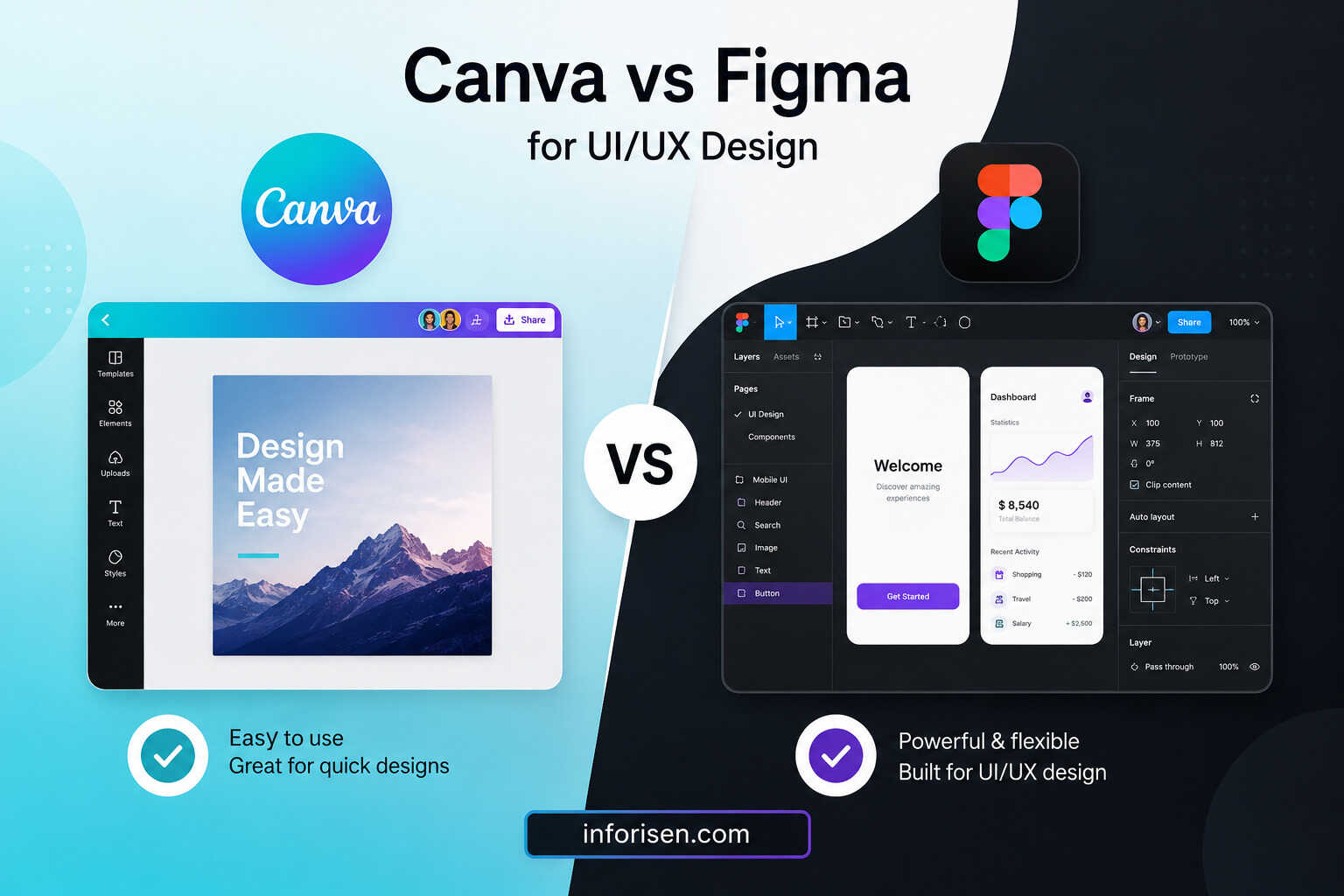
Canva vs Figma for UI/UX design is one of the most common comparisons beginners make. Both tools are easy to access, but they are built for different purposes.
Canva is mainly designed for fast visual content, templates, presentations, social graphics, basic mockups, and simple design work. Figma is built for product design, UI design, UX collaboration, prototyping, design systems, and developer workflow. Figma describes its platform as a workspace where design, code, and AI support the product development process from idea to shipped product.
This does not mean Canva is bad. It means Canva and Figma solve different problems.
| Feature | Canva | Figma |
|---|---|---|
| Beginner friendly | Very easy | Easy, but deeper |
| UI design control | Basic to moderate | Advanced |
| UX flows | Limited | Strong |
| Wireframing | Good for simple layouts | Strong for real product design |
| Prototyping | Basic | Advanced |
| Design systems | Limited | Strong |
| Developer handoff | Weak | Strong |
| Best for | Beginners, marketers, quick mockups | Designers, teams, apps, websites |
If someone asks, “Can Canva replace Figma for UI design?” the honest answer is no for serious UI/UX work. Canva can help with quick concepts, but Figma is more suitable for professional interface design.
Canva vs Adobe XD for UI Design
Canva vs Adobe XD for UI design is slightly different because Adobe XD was created for interactive prototypes, wireframes, and UI/UX design. Adobe’s documentation describes XD as a tool for designing interactive prototypes, wireframes, and user experiences for web and mobile apps. Adobe also notes that XD is currently in maintenance mode.
This matters because Adobe XD is still known in the UI/UX world, but many teams now prefer Figma for collaboration and modern product workflows. Canva is easier for beginners, while Adobe XD is more focused on UX and interaction design.
| Feature | Canva | Adobe XD |
|---|---|---|
| Ease of use | Very easy | Moderate |
| UI design purpose | Basic visual UI | Professional UI/UX |
| Prototyping | Limited | Stronger |
| Wireframes | Simple | Detailed |
| Team workflow | Good for simple feedback | Better for UX workflows |
| Current industry use | Strong for visual content | Less active than before |
| Best use | Fast concepts | UI/UX prototypes |
Canva is easier for non-designers. Adobe XD is more UI/UX-focused, but its maintenance mode means teams should think carefully before choosing it for long-term workflows.
Best Tool for UI/UX Design Beginners

The best tool for UI/UX design beginners depends on the goal. If the goal is to understand layouts, practice visual design, or present simple ideas, Canva is a comfortable starting point. It reduces the fear of complex software and helps beginners learn basic spacing, hierarchy, colors, and layout.
If the goal is to become a professional UI/UX designer, Figma is usually the better next step. It teaches real product design habits such as frames, components, variants, auto layout, prototyping, and developer handoff.
A beginner can follow this path:
- Start with Canva to understand simple layouts.
- Learn wireframes and user flows.
- Move to Figma for real UI/UX work.
- Study design systems and responsive layouts.
- Practice usability thinking and conversion-focused design.
This path is also useful for students who want to build a career in design. The long-term value of the field is discussed in is UI UX a good career in 2030, because businesses continue to need better digital products, websites, and customer experiences.
When Canva Is a Smart Choice for UI/UX Design
Canva is a smart choice when the project is small, early, visual, or presentation-focused. It helps people communicate ideas without needing advanced design knowledge.
A business owner may not need a full design system just to explain a homepage idea. A marketer may not need Figma just to show a landing page concept. A beginner may not need Adobe XD to create a first mobile app layout.
Canva works best when you need:
- A quick visual mockup
- A simple wireframe
- A client presentation
- A landing page concept
- A website section idea
- A mobile screen preview
- A design direction before hiring experts
This makes Canva valuable in the early stage. It gives shape to an idea before deeper UX work begins.
When Canva Is Not Enough for UI/UX Design
Canva is not enough when the project needs precision, interaction, testing, scalability, or developer collaboration. Professional UI/UX design often requires structure that Canva does not fully support.
For example, a SaaS dashboard may need reusable components, responsive grids, complex user roles, empty states, error states, hover states, and developer notes. An ecommerce app may need filters, checkout flows, product variations, payment screens, and usability testing. These projects need deeper design control.
Canva may also create a false sense of completion. A screen can look nice, but that does not mean it is usable. UX success depends on how users behave, not only how the screen looks.
How Businesses Should Use Canva in a Real UI/UX Workflow
Businesses can use Canva as a starting tool, not the final tool. It can help teams collect ideas, create mood boards, prepare rough wireframes, and explain page direction. After that, a professional UI/UX team can turn the idea into a proper user journey.
This workflow is practical because it saves time. The business team can show what they want. The design team can improve it with research, structure, accessibility, SEO thinking, and conversion planning.
A simple workflow can look like this:
| Step | Tool Use | Purpose |
|---|---|---|
| Idea planning | Canva | Show rough visual direction |
| Wireframe review | Canva or Figma | Arrange content sections |
| UX improvement | Figma | Improve flow and usability |
| UI design | Figma | Build polished screens |
| Prototype | Figma | Test interactions |
| Development handoff | Figma | Share assets and specs |
This approach gives businesses the speed of Canva and the professional depth of UI/UX design.
Can Canva Help With SEO-Friendly Web Design?
Canva can help plan SEO-friendly web design at a basic level. It can help arrange sections, create visual hierarchy, and plan content placement. But SEO-friendly UX needs more than a good-looking layout.
A page should load fast, work well on mobile, guide users clearly, support internal links, and match search intent. It should also make important information easy to scan. This is important because users often decide within seconds whether a page feels useful or not.
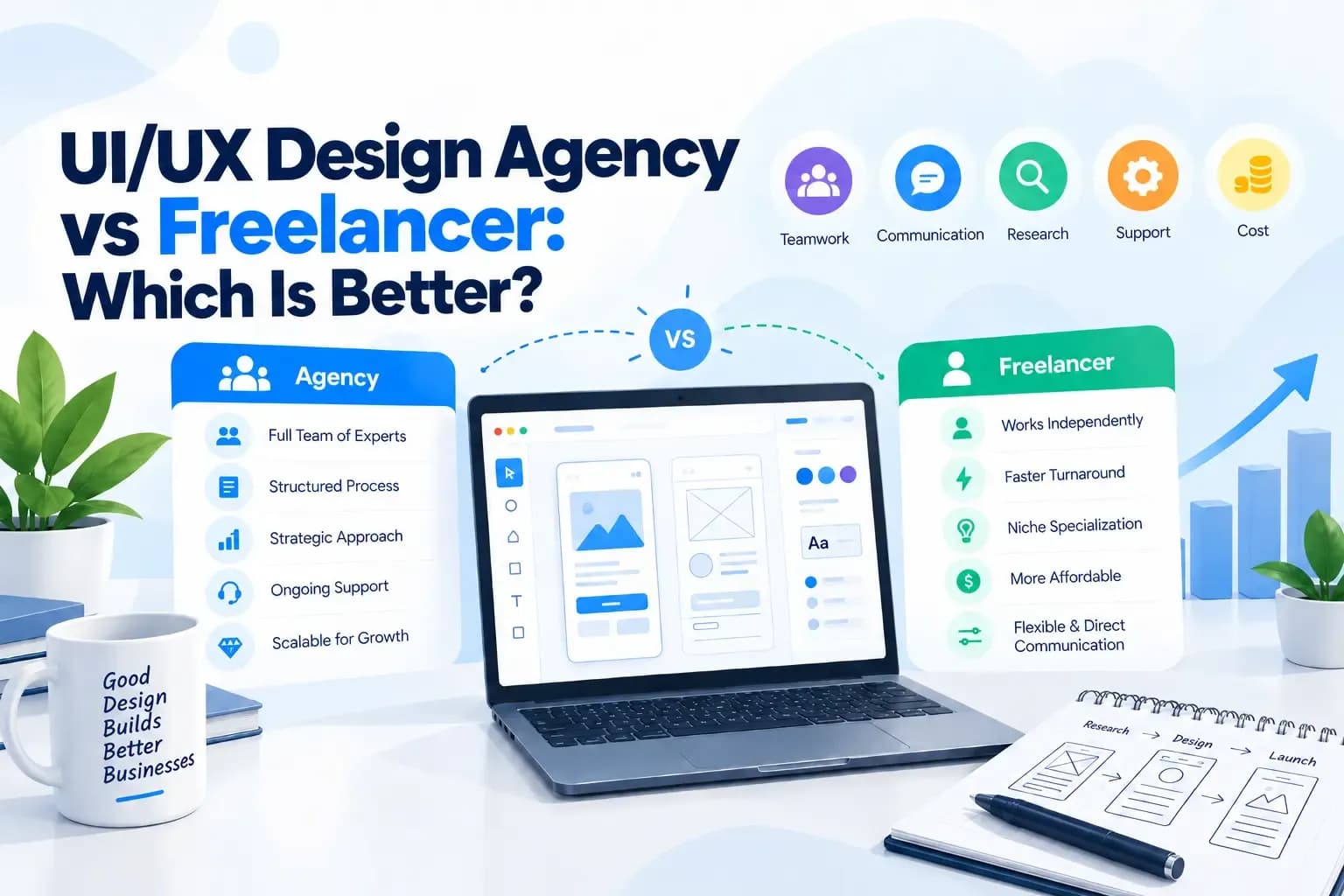
For a business website, this is where a professional UI/UX Design Agency matters. A team like Inforisen can connect UI/UX design, website development, SEO structure, and conversion strategy so the final website is not only visually attractive but also user-friendly and optimized for search engines.
Final Verdict
Canva is a good starting tool for UI/UX design ideas, but it is not a complete professional UI/UX design platform. It can help beginners create wireframes, app UI concepts, website mockups, and visual layouts. It is simple, fast, and useful for early planning.
However, Canva cannot fully replace Figma for UI design or professional UX workflows. Figma is better for advanced UI systems, interactive prototypes, team collaboration, and developer handoff. Adobe XD was built for UI/UX design too, but its current maintenance mode makes Figma a safer choice for many modern teams.
So, Can Canva be used for UI/UX design? Yes, for simple concepts, beginner practice, quick wireframes, and early mockups. But for serious websites, apps, SaaS products, ecommerce platforms, and conversion-focused digital products, Canva should be the starting point, not the final design solution.
Frequently Asked Questions
Yes, Canva can be used for simple UI/UX design tasks such as wireframes, app screen ideas, website mockups, and visual layout planning. It is best for beginners and early-stage concepts, not advanced professional UX workflows.
Yes, you can design UI in Canva using templates, shapes, icons, grids, mockups, and wireframe layouts. It works well for simple website and app screen concepts, but it has limits for complex interaction design.
Canva is good for basic UX planning, especially for visualizing layouts and user journeys. But full UX design also needs research, testing, user flows, accessibility, and conversion strategy, which require more advanced tools and skills.
No, Canva cannot fully replace Figma for professional UI design. Canva is easier for quick visuals, but Figma is stronger for components, prototypes, design systems, collaboration, and developer handoff.
Yes, Canva can create app UI design concepts and mobile screen mockups. It is useful for presenting an idea, but professional app design should usually be built in a dedicated UI/UX tool like Figma.
Yes, Canva can create website wireframes using templates and layout tools. It is useful for planning page structure, but advanced website UX should include responsive design, user flow, content strategy, and SEO planning.
Canva is a good first tool for beginners who want to understand layouts and create simple mockups. Figma is better for beginners who want to become professional UI/UX designers and work on real websites, apps, or digital products.


.webp&w=3840&q=75)
.jpg&w=3840&q=75)